Tickets
The Ticket is the central object in billetsys. It represents a support case from the first report through investigation, communication, and final resolution.
Purpose
Tickets bring together the information needed to manage a case in one place. Instead of splitting status, ownership, communication, and attachments across different tools, billetsys keeps them connected to the same record.
Core information
A ticket can hold the main context for a support issue, including:
- Ticket identifier
- Ticket title
- Company
- Requester
- Status
- Category
- Entitlement
- Affected and resolved versions
- Support and TAM assignments
- External contributors
- External issue reference
- Ticket rating and feedback
- Message history
This allows teams to understand both the current state of a case and how it reached that state.
The entity model stores the ticket identifier and the ticket title separately. The identifier is the generated case reference used for routing, exports, and cross-system references, while the title is the human-written summary entered when the ticket is created.
Lifecycle
Tickets move through a lifecycle that begins when an issue is reported and ends when the case is resolved and closed.
A typical flow looks like this:
- A ticket is created
- The ticket is reviewed and assigned
- Support and customer communication continues in the message thread
- Status changes reflect current progress
- The ticket reaches “Resolved” state
- The user provides an optional 10-star rating and feedback comment
- A resolved case is eventually closed, either manually or automatically after a configured inactivity period (default is 7 days)
This lifecycle gives both customer-facing roles and operational roles a shared view of progress.
Status and ownership
Status is one of the most important parts of the ticket workflow. It helps users understand whether a case is waiting for action, already assigned, actively being worked on, or completed. A special hidden status, “Waiting for External Feedback”, is available to Support and TAM roles to indicate they are waiting on an external contributor; this status is automatically masked as “In Progress” for regular Users and Superusers to keep internal workflows private.
Ownership matters just as much. Support assignments and TAM involvement make it clear who is currently responsible for handling the case and who is following the customer relationship. Users, Superusers, TAMs, and Support roles can also add “External Contributors” by their email addresses. This allows tracking the involvement of external engineers or documentation staff who don’t need a formal account in billetsys. Standard Users, Superusers, and TAMs can manage external contributors for their assigned companies, while Support can manage them globally.
Ticket lists
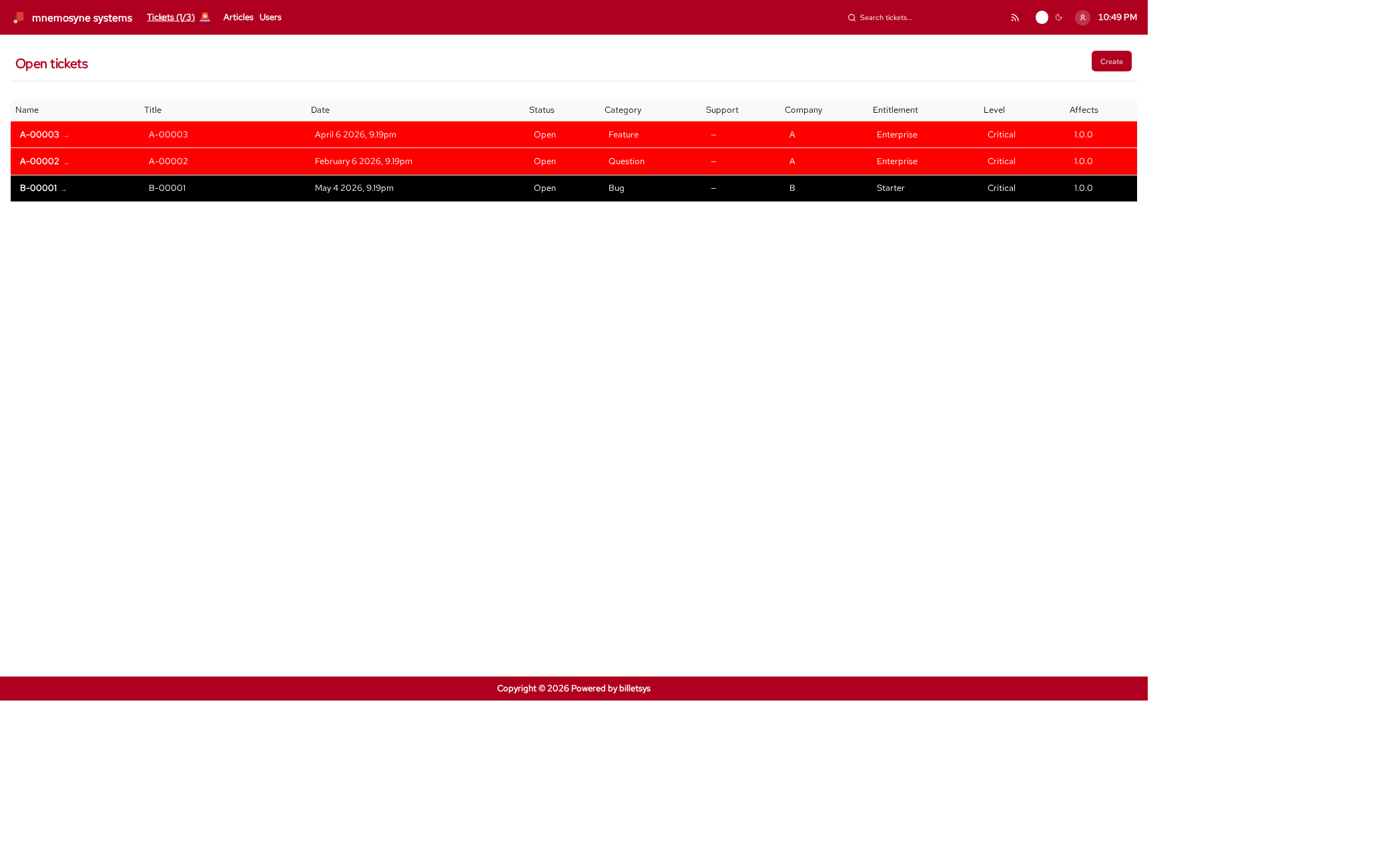
Billetsys provides ticket lists that help each role focus on the cases relevant to them. Depending on role, the interface can emphasize:
- Personal tickets
- Company-scoped tickets
- Assigned work
- Open work
- Closed work
This makes the ticket area useful both for individual follow-up and for operational queue management.
Pagination and page size
Ticket lists are paginated. The default page size is 10, but it can be changed per-page using the rows-per-page selector at the bottom of any list. Available options are 10, 25, and 50.
Users can set a personal default in their Profile under Default rows. This preference applies to all paginated lists across the application. The per-page selector overrides this default for the current view.
The current page, page size, sort column, and direction are preserved in the browser URL. This means paginated views are bookmarkable — sharing or reopening a URL returns to the exact same view state.
Column sorting
Ticket list columns can be sorted by clicking the column header. Clicking a column that is already the active sort toggles between ascending (▲) and descending (▼) order. Clicking a different column starts ascending sort on that column.
Sortable columns include: Name, Title, Date, Status, Category, Company, Entitlement, Level, and Affects.
Keyboard shortcuts
For roles that use the ticket queues, these keyboard shortcuts are available from the application header:
Ctrl+Aopens Active ticketsCtrl+Oopens Open ticketsCtrl+Copens Closed ticketsCtrl++opens Create ticket
When a ticket queue view is open, Alt+1 through
Alt+9 open the first through ninth ticket in the currently
visible list order, and Alt+0 opens the tenth ticket.
On the ticket detail page, the following shortcuts are available to jump directly to specific fields or sections (and will automatically open dropdown menus):
Alt+1: Jump to Summary / TitleAlt+2: Jump to CategoryAlt+3: Jump to StatusAlt+4: Jump to External Issue linkAlt+5: Jump to Affects VersionAlt+6: Jump to Resolved VersionAlt+7: Jump to the Messages ThreadAlt+8: Focus the Reply Editor
These shortcuts work universally, even if you are viewing read-only
versions of the fields. If you are actively typing inside a text box
(like the Reply Editor) and wish to use a shortcut to jump elsewhere,
simply use the Alt+Number shortcut directly—they will
gracefully navigate you out of the current field.
Ticket search
The application header includes a global search field that is always
visible for authenticated users. Pressing Ctrl+K focuses
the search input.
The search works across both tickets and articles from any page. As you type, matching results appear in a dropdown below the input field. Clicking a result navigates directly to the ticket or article detail page.
For tickets, the search matches:
- Ticket identifier (e.g. typing
A-suggestsA-00001) - Ticket title
Arrow keys can be used to navigate results, and Enter
selects the highlighted item.
Detail view
The ticket detail page is where the full case comes together. It combines the current ticket data with the full conversation history, attached files, assignments, and related references.
This page is the main working area for understanding a case in context.
Cross-references from other tickets that mention this ticket are shown in a dedicated Related section in the ticket header.
Ratings and feedback
Once a ticket has been marked as Resolved, a rating can be submitted to capture customer satisfaction. A rating consists of a 1–10 star scale and an optional text comment. A ticket can only be rated once.
Who can submit a rating
- Users can rate their own tickets — only tickets where they are the requester.
- Superusers can rate tickets belonging to their company. A superuser can only see and interact with tickets scoped to the company they belong to.
Support, TAM, and Admin roles cannot submit ratings.
Who can view a rating
Once a rating has been submitted, it becomes a read-only display on the ticket detail page. Visibility follows the same company-scoping rules as the ticket itself:
- Users see the rating on their own tickets.
- Superusers see ratings on all tickets within their company.
- TAMs see ratings on tickets for the companies they are assigned to.
- Support agents see ratings on all tickets they have access to.
- Admins see ratings through the ticket workbench, which provides a system-wide view across all companies.
Auto-close
If a resolved ticket is not rated within a configurable period (default: 7 days), the system automatically closes it. The interval can be configured by an Admin through the Owner settings page under “Ticket auto-close.” Setting the value to 0 disables auto-close entirely.
When a ticket is auto-closed, its rating is set to
-1. This sentinel value distinguishes auto-closed
tickets from those that have not yet been rated (null) and
those with an actual user-submitted rating
(1–10).
External tracking
Tickets can also include an external issue reference. This makes it easier to connect billetsys with development or defect tracking workflows outside the ticket system itself.
Export
Billetsys supports exporting tickets so that a case can be shared, archived, or reviewed outside the live application. This is useful when teams need a portable version of the case record.
Role perspective
All roles interact with tickets, but not in the same way.
In general:
- Users follow the cases they reported
- Superusers coordinate tickets within their broader company scope
- TAMs monitor and follow ticket activity across assigned accounts
- Support staff actively work and update tickets
- Admins oversee the structures behind the ticket process
This shared but role-aware design is what makes the ticket model the center of billetsys.